


Switching from Android to iPhone is always exciting, but I know the real challenge comes when you think about moving your contacts.
Nobody wants to lose years of saved phone numbers, email addresses, and important details while shifting to a new device, and if something goes wrong, Android data recovery software can be a lifesaver. So, it is important to learn how to transfer contacts from Android to iPhone.
The good news is that transferring contacts is easier than you might think, thanks to different tools and built-in features.
In this guide, I am going to explain multiple ways to transfer your contacts from Android to iPhone so you can pick the method that works best for you.
How to Transfer Contacts from Android to iPhone?
Below, I have mentioned multiple ways that can help you learn how to transfer contacts from Android to iPhone comfortably and easily.
1. Use Apple’s Move to iOS App
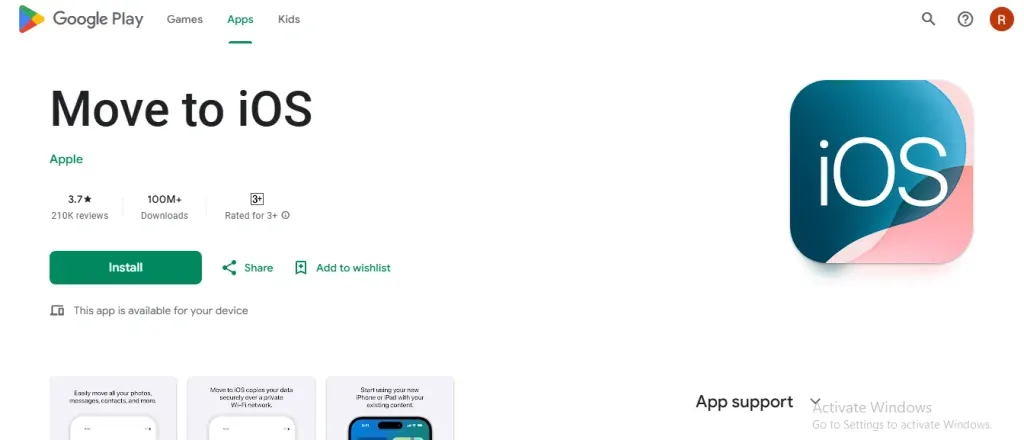
When moving from Android to iPhone, Apple has made life easier with its Move to iOS app. This app was designed specifically for people who are making the switch. It lets you transfer not just contacts but also your messages, photos, and other data in one go.
The Move to iOS app creates a secure connection between your Android and iPhone. Once both devices are connected, you can choose what kind of data you want to transfer. It includes contacts, which are moved directly to your iPhone’s contact list.
Steps to Transfer Contacts with Move to iOS
- Download the Move to iOS app on your Android phone.
- Start setting up your new iPhone until you reach the Apps & Data screen.
- Select “Move Data from Android.”
- Open the app on your Android device and follow the prompts.
- Enter the code shown on your iPhone.
- Choose Contacts along with any other data you want to move.
- Wait for the transfer to complete before finishing the setup.
This method is perfect if you are setting up your iPhone for the very first time.
2. Use Google Account Sync
If you already use a Google account on your Android phone, you might be surprised how easy it is to move contacts. This method does not require you to install any extra apps.
Your Google account automatically backs up your contacts if syncing is enabled. This is part of how Android System Intelligence works behind the scenes to keep your data organized.
Once you sign in to your Google account on your iPhone, all those contacts can appear in the Contacts app without extra effort.
Steps to Sync Google Contacts to iPhone
- On your Android device, make sure contact syncing with Google is enabled.
- Open Settings on your iPhone.
- Go to Mail and then Accounts.
- Select Add Account and log in with your Google account.
- Turn on Contacts when asked which services to sync.
- Your iPhone will now pull in all the contacts from your Google account.
It is one of the smoothest ways if you are someone who always uses Google services.
3. Import Contacts with a SIM Card
Sometimes, the simplest way is still the most effective. If you prefer old-school methods, using your SIM card to transfer contacts is an option.
This method is best if you do not want to depend on internet-based syncing or apps. However, keep in mind that SIM cards have limited storage space, so this works best for people who do not have thousands of contacts.
Steps to Transfer Contacts Using a SIM Card
- On your Android phone, go to Contacts.
- Export or save your contacts to the SIM card.
- Remove the SIM card and place it into your iPhone.
- On your iPhone, go to Settings and then Contacts.
- Choose Import SIM Contacts.
- The saved contacts will now appear in your iPhone’s contact list.
This method is straightforward, though it may not work for everyone with large contact lists.
4. Use VCF File (vCard)
Another universal method is to use a vCard file, also known as a VCF file. This file format stores contact details and can be easily shared between devices.
A VCF file works across platforms, so it does not matter whether you are using Android, iPhone, or even a computer. You can email the file to yourself or transfer it through any method you prefer.
Steps to Transfer Contacts with a VCF File
- On your Android phone, open the Contacts app.
- Export your contacts as a VCF file.
- Send this file to your email address.
- Open the email on your iPhone and download the file.
- Tap the file and select Add All Contacts.
- The contacts will be imported into your iPhone’s Contacts app.
This option is reliable and works even if you are not using a Google account.
5. Use Third-Party Apps
There are also third-party apps available on both Android and iPhone that can handle contact transfers. These apps often come with additional features, such as backup and restore.
Examples of Third-Party Apps
- My Contacts Backup
- Copy My Data
- SHAREit
These apps are often designed to make the process quick and simple. You just install the app on both devices, connect them either through WiFi or Bluetooth, and follow the steps.
However, if you’re still exploring your options or thinking about upgrading your device, check out our list of top trending mobile phones to find the best fit for you in 2026.
Final Thoughts: Effortless Ways to Transfer Contacts from Android to iPhone
These are the details on how to transfer contacts from Android to iPhone.
Transferring contacts from Android to iPhone may sound like a difficult task, but it is actually very simple once you know the different methods available. Whether you prefer using Apple’s Move to iOS app, syncing through Google, relying on a SIM card, exporting a VCF file, or trying out third-party apps, you can choose the method that best fits your needs.
Personally, I recommend using Google Sync if you already depend on Google services, or Move to iOS if you are starting fresh. The main thing is that you do not lose your valuable contacts when you make the exciting switch to iPhone.
