Close Menu
  • Home
  • Tech
  • Gaming
  • How to Guides
  • Social Media
    • YouTube
    • Tiktok
    • Instagram
    • Facebook
    • Snapchat
    • LinkedIn
  • Apps & Software
  • Reviews
  • News
Facebook X (Twitter) Instagram
Trending
  • Credit Card Fraud and Hacktivism: Modern Cybersecurity Risks
  • Minecraft Confirms Nintendo Switch 2 Release Date of October 27
  • Gears of War: E-Day Beta and More Headline Xbox Game Pass August Wave 1
  • Xbox Disc-to-Digital Feature Coming This Month, Leaked Document Suggests
  • Rockstar Hints Point To GTA 6 Gameplay Dropping This Month 
  • Sony Hears the Backlash Over Ending PlayStation Discs, but Presses Ahead Anyway
  • D&D Goes Big at Gen Con 2026: World of Warcraft Crossover, Star Wars Reveal, and Dark Sun’s Mature-Rated Return
  • Fortnite Servers Down for v41.30 Update: Spider-Man Skins, New Sprites, and Everything Coming Today
Facebook X (Twitter) Instagram LinkedIn
Techuy – Tech News, Guides, Apps & Online ToolsTechuy – Tech News, Guides, Apps & Online Tools
  • Home
  • Tech
  • Gaming
  • How to Guides
  • Social Media
    • YouTube
    • Tiktok
    • Instagram
    • Facebook
    • Snapchat
    • LinkedIn
  • Apps & Software
  • Reviews
  • News
Techuy – Tech News, Guides, Apps & Online ToolsTechuy – Tech News, Guides, Apps & Online Tools
Home » Blog » How to Enable Dark Mode in Windows 11 (Step-by-Step Guide) 
How to Guides

How to Enable Dark Mode in Windows 11 (Step-by-Step Guide) 

Fawad MalikBy Fawad MalikMay 22, 2026No Comments4 Mins Read
Facebook Twitter Pinterest LinkedIn Tumblr Email
Feature image showing how to enable Dark Mode in Windows 11 on a laptop with dark theme settings open.
Windows 11 Dark Mode gives your desktop a cleaner and more comfortable dark appearance for daily use.
Share
Facebook Twitter LinkedIn Pinterest Email
Table of Contents
  • What Is Dark Mode in Windows 11?
  • Steps to Enable Dark Mode in Windows 11
  • How to Customize Dark Mode in Windows 11?
  • Benefits of Using Dark Mode in Windows 11
  • Dark Mode Not Working in Windows 11? Try These Fixes
  • People Also Ask
    • Does Dark Mode reduce eye strain?
    • Does Dark Mode save battery in Windows 11?
    • Can I schedule Dark Mode automatically?
    • Why is File Explorer still white?
    • Is Dark Mode better for gaming?
  • Final Thoughts on Enabling Windows’ Dark Mode

Tired of eye strain from the bright white screen on Windows 11? I’ve been there too.

I have been using Windows 11 for the past 3 years, and one thing I’ve learned is that small customization changes can completely improve the experience.

At first, I ignored Dark Mode because the default light theme felt normal. However, after long work sessions and watching gaming videos on YouTube channels, the bright interface started feeling uncomfortable, especially at night.

Once I activated Dark Mode, the desktop instantly felt cleaner, more modern, and easier on the eyes. Now, let’s explore how to enable Dark Mode in Windows 11 step by step.

What Is Dark Mode in Windows 11?

Dark Mode in Windows 11 is a built-in display setting that changes the system interface from a bright light theme to a darker appearance. 

Once you turn on dark mode, elements like the taskbar, Start menu, File Explorer, Settings app, and supported applications switch to dark colors, creating a cleaner and more modern look.

Many users enable Dark Mode to reduce eye strain during long screen sessions, especially at night or in low-light environments. Besides improving comfort, it also helps personalize the overall Windows 11 experience.

Steps to Enable Dark Mode in Windows 11

Follow these simple steps to quickly activate Dark Mode in Windows 11 and give your desktop a cleaner, more comfortable dark appearance.

  • Open Settings using the Start Menu or press Windows + I.
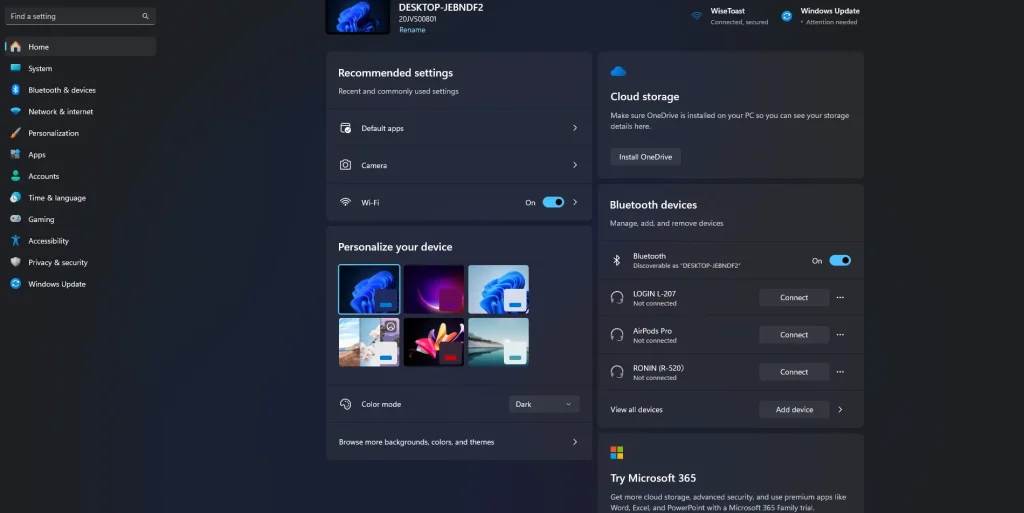
Windows 11 Settings screen displaying the desktop personalization section with Dark Mode enabled.
  • Click Personalization from the left sidebar.
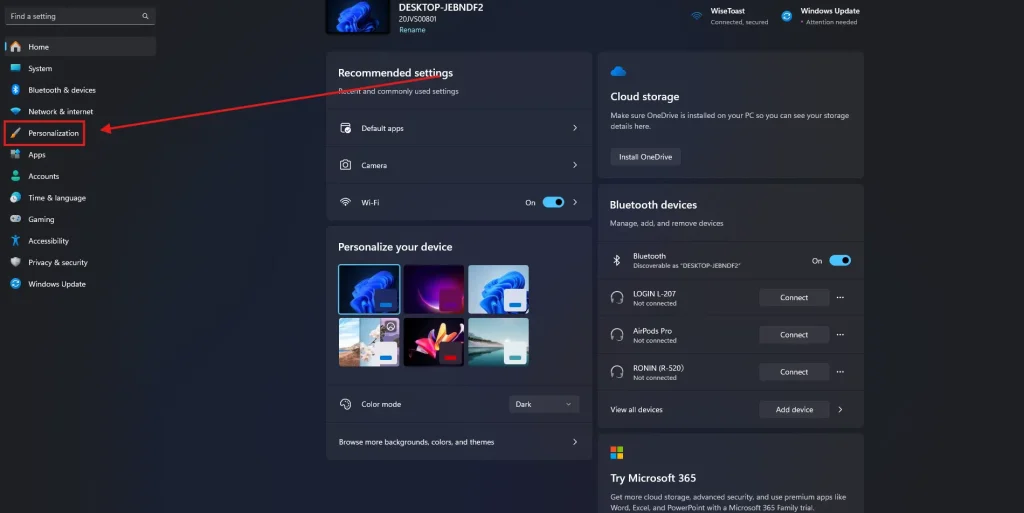
Windows 11 Settings homepage highlighting the Personalization option used to access Dark Mode settings.
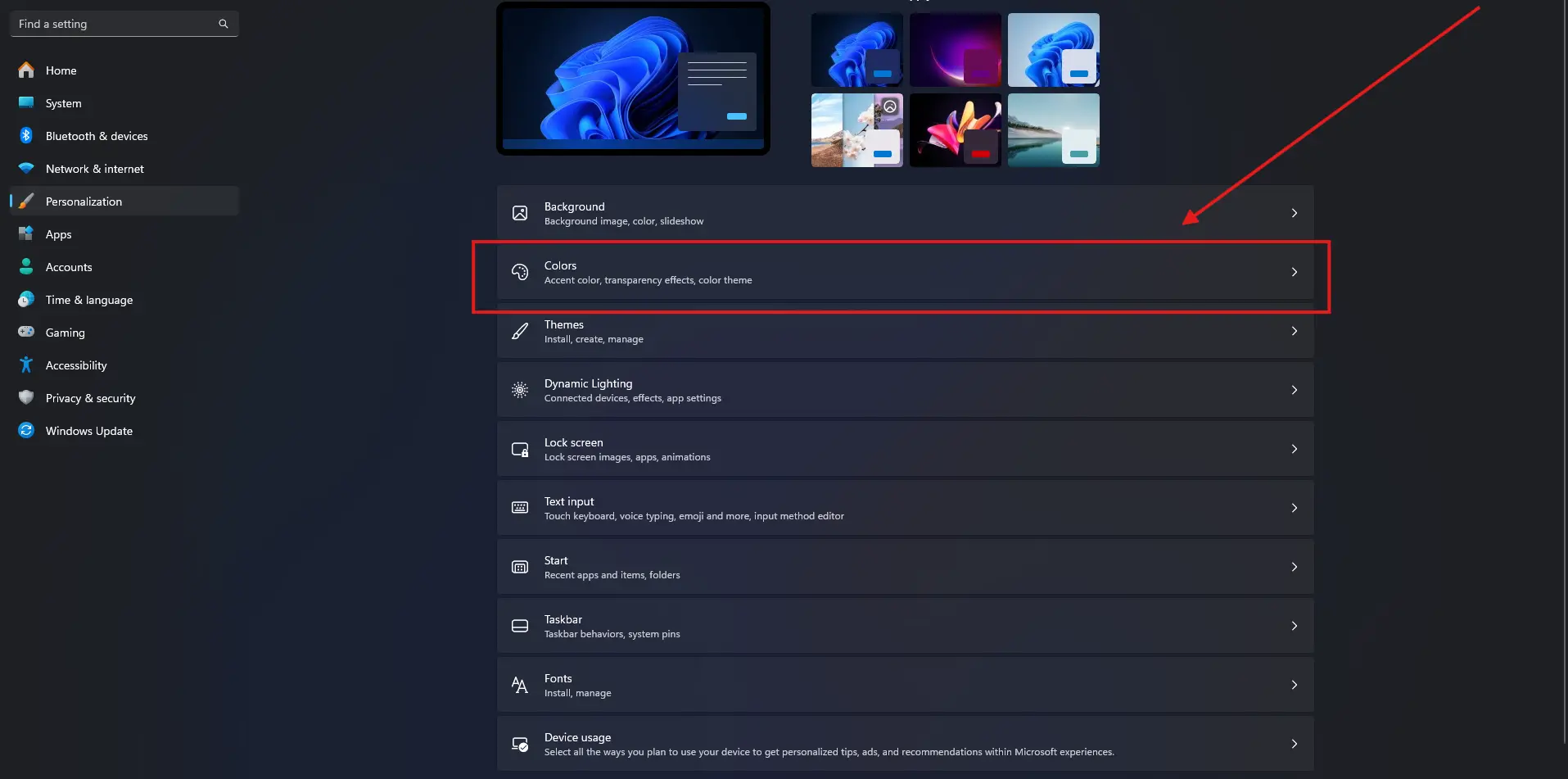
  • Select Colors.
Windows 11 Personalization settings showing the Colors option for changing theme and dark appearance settings.
  • Find the Choose your mode option and select Dark from the dropdown menu.
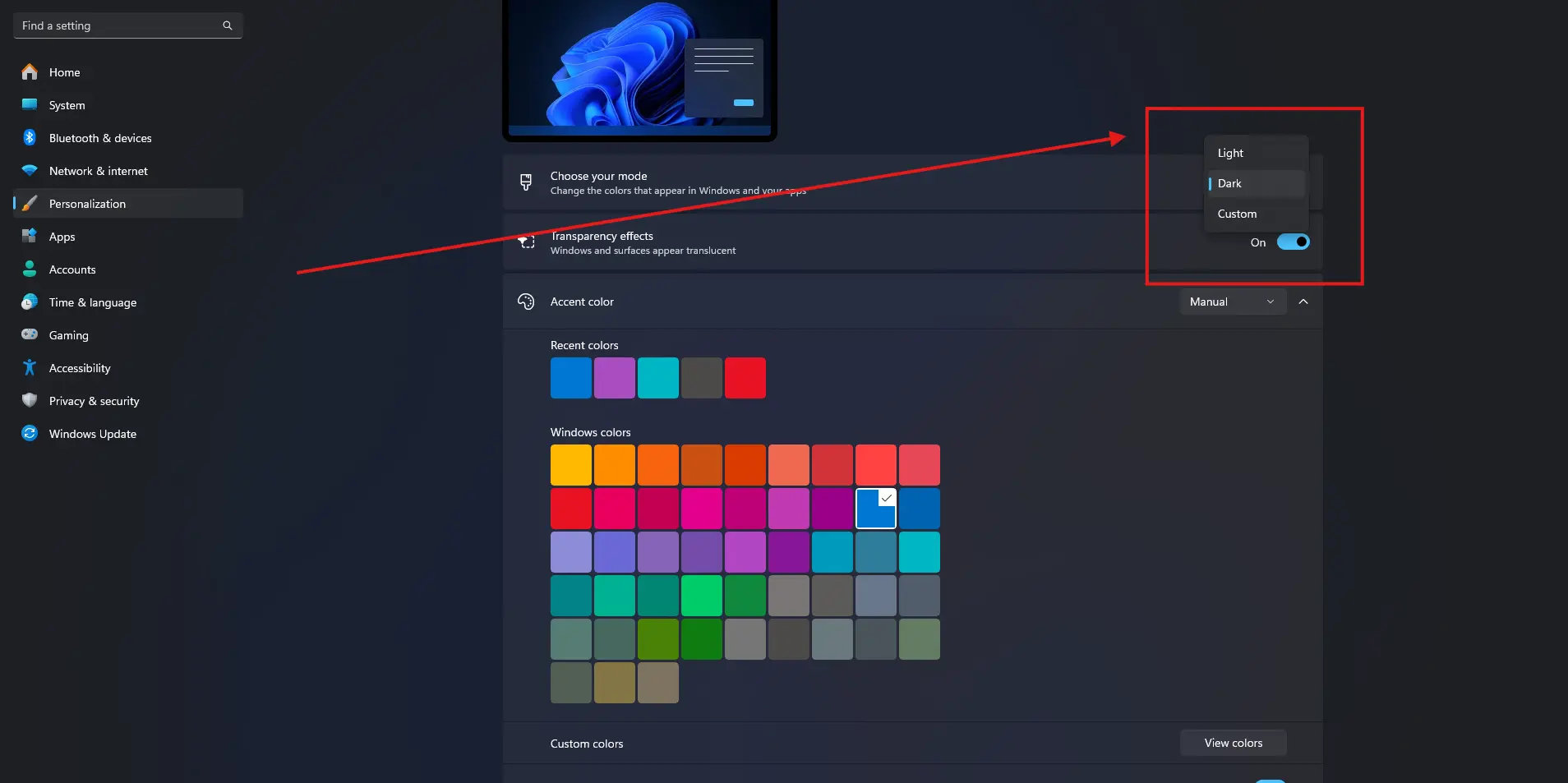
Windows 11 Colors settings with the Choose Your Mode dropdown set to Dark Mode.

Once enabled, Windows 11 will automatically apply a dark appearance to the taskbar, Start menu, File Explorer, Settings, and supported apps like PC games.

How to Customize Dark Mode in Windows 11?

Once Dark Mode is enabled in Windows 11, you can further personalize the appearance to match your style and improve your overall desktop experience.

  • Change accent colors to customize the taskbar and Start menu
  • Enable transparency effects for a smoother interface look
  • Apply custom themes for a unique desktop appearance
  • Use dark mode for apps only while keeping Windows light
  • Choose a matching wallpaper for a cleaner dark setup
  • Adjust Night Light settings for more comfortable nighttime use

Benefits of Using Dark Mode in Windows 11

After enabling Dark Mode, you’ll notice several improvements in both comfort and appearance while using Windows 11.

  • Reduces eye strain during long screen sessions
  • Makes the desktop look cleaner and more contrasting with platforms like Stealthgram
  • Improves visibility in low-light environments
  • Creates a more comfortable viewing experience at night
  • Helps you stay focused while working or gaming
  • Can help save battery life on OLED displays

Dark Mode Not Working in Windows 11? Try These Fixes

If Dark Mode is not applying properly in Windows 11, try these quick fixes to resolve the issue.

  • Restart your computer and reapply Dark Mode
  • Make sure Windows 11 is fully updated
  • Check if the theme is set to Dark under Personalization settings
  • Update your graphics drivers
  • Disable high contrast mode if it’s turned on
  • Restart File Explorer from Task Manager
  • Switch to the default Windows theme and try again

People Also Ask

Does Dark Mode reduce eye strain?

Yes, Dark Mode can make screen viewing more comfortable, especially in low-light environments or during long work sessions.

Does Dark Mode save battery in Windows 11?

On devices with OLED or AMOLED displays, Dark Mode may help reduce battery usage because darker pixels consume less power.

Can I schedule Dark Mode automatically?

Windows 11 does not offer built-in automatic Dark Mode scheduling, but you can use third-party tools for automation.

Why is File Explorer still white?

This usually happens when the system theme is not fully applied. Restarting File Explorer or reselecting Dark Mode often fixes the issue.

Is Dark Mode better for gaming?

Many users prefer Dark Mode while gaming because the darker interface feels less distracting and more immersive.

Final Thoughts on Enabling Windows’ Dark Mode

Enabling Dark Mode in Windows 11 is a simple way to create a cleaner, more comfortable desktop experience. 

Whether you use your PC for work, gaming, or browsing, the darker interface feels easier on the eyes during long screen sessions. 

From my personal experience, switching to Dark Mode made Windows 11 look more modern and far less distracting at night. If you want to reduce eye strain while personalizing your desktop, Dark Mode is definitely worth enabling. 

Share. Facebook Twitter Pinterest LinkedIn Tumblr Email
Fawad Malik
  • Website

Fawad Malik is a tech blogger and digital marketing specialist with 15+ years of experience. As the founder of Techuy.com, he covers technology, gadgets, SEO, social media marketing, and business ideas, sharing insights based on the latest industry trends. His content is regularly updated to provide accurate and valuable information to readers.

Related Posts

How to Delete Temporary Files in Windows 11 (Step-by-Step) 

June 2, 2026

How to Record Screen in Windows 11 for Free? (Easy Methods for Beginners)

May 26, 2026

How to Choose the Best Gaming Mouse in 2026? 10 Points to Consider

April 24, 2026
Leave A Reply Cancel Reply

About Techuy
Techuy - Technology for Innovators

Techuy is a technology-focused platform that shares clear, practical content on tech news, software, apps, digital trends, and online tools. The goal is simple: help readers stay informed and make better tech decisions through easy-to-read and useful guides.

Facebook Instagram
Latest Additions

Credit Card Fraud and Hacktivism: Modern Cybersecurity Risks

August 17, 2026

Minecraft Confirms Nintendo Switch 2 Release Date of October 27

August 6, 2026

Gears of War: E-Day Beta and More Headline Xbox Game Pass August Wave 1

August 5, 2026

Xbox Disc-to-Digital Feature Coming This Month, Leaked Document Suggests

August 4, 2026

Techuy shares the latest tech news, practical technology guides, detailed app reviews, useful online tools, gaming updates, and smart digital tips to help users stay informed, solve everyday tech problems.

Email Us: [email protected]

Our Picks

Credit Card Fraud and Hacktivism: Modern Cybersecurity Risks

August 17, 2026

Minecraft Confirms Nintendo Switch 2 Release Date of October 27

August 6, 2026

Gears of War: E-Day Beta and More Headline Xbox Game Pass August Wave 1

August 5, 2026

Subscribe to Updates

Get the latest creative news.

© 2021-2026. www.techuy.com All Rights are Reserved.
  • About Us – TechUY.com
  • Contact Us
  • Sitemap
  • Privacy Policy
  • Content Guidelines
  • Terms and Conditions

Type above and press Enter to search. Press Esc to cancel.