
Close Menu
  • Home
  • Tech
  • Gaming
  • How to Guides
  • Social Media
    • YouTube
    • Tiktok
    • Instagram
    • Facebook
    • Snapchat
    • LinkedIn
  • Apps & Software
  • Reviews
  • News
Facebook X (Twitter) Instagram
Trending
  • Credit Card Fraud and Hacktivism: Modern Cybersecurity Risks
  • Minecraft Confirms Nintendo Switch 2 Release Date of October 27
  • Gears of War: E-Day Beta and More Headline Xbox Game Pass August Wave 1
  • Xbox Disc-to-Digital Feature Coming This Month, Leaked Document Suggests
  • Rockstar Hints Point To GTA 6 Gameplay Dropping This Month 
  • Sony Hears the Backlash Over Ending PlayStation Discs, but Presses Ahead Anyway
  • D&D Goes Big at Gen Con 2026: World of Warcraft Crossover, Star Wars Reveal, and Dark Sun’s Mature-Rated Return
  • Fortnite Servers Down for v41.30 Update: Spider-Man Skins, New Sprites, and Everything Coming Today
Facebook X (Twitter) Instagram LinkedIn
Techuy – Tech News, Guides, Apps & Online ToolsTechuy – Tech News, Guides, Apps & Online Tools
  • Home
  • Tech
  • Gaming
  • How to Guides
  • Social Media
    • YouTube
    • Tiktok
    • Instagram
    • Facebook
    • Snapchat
    • LinkedIn
  • Apps & Software
  • Reviews
  • News
Techuy – Tech News, Guides, Apps & Online ToolsTechuy – Tech News, Guides, Apps & Online Tools
Home » Blog » How to See Who Screenshotted Your Public Snapchat Story? (2025 Guide)
How to Guides

How to See Who Screenshotted Your Public Snapchat Story? (2025 Guide)

Fawad MalikBy Fawad MalikMay 28, 2025No Comments4 Mins Read
Facebook Twitter Pinterest LinkedIn Tumblr Email
How to See Who Screenshotted Your Public Snapchat Story
How to See Who Screenshotted Your Public Snapchat Story? (2025 Guide)
Share
Facebook Twitter LinkedIn Pinterest Email
Table of Contents
  • What is the Snapchat Story?
  • How to See Who Screenshotted Your Public Snapchat Story 2025
    • 1. Open the Snapchat Application
    • 2. Tap on The Profile Icon in the Upper Left Corner of Your Smartphone
    • 3. Now, Tap on the Story That You Want to Check
    • 4. Tap on the Upside arrow and See Who Viewed the Story and Screenshotted
  • All in All...
  • People Also Ask

A Public Snapchat account is an engaging feature of Snapchat, as the young generation commonly uses it to reconnect with their loved ones. You can share stories of something special that happened to you that can be viewed by your friends. 

But… how to see who screenshotted your Public Snapchat story?

Are you also seeking the solution? If so, then keep reading because I’ve compiled a comprehensive guide on this to provide you with a reliable fix. So, stay hooked and learn how you can protect your privacy.

What is the Snapchat Story?

Snapchat story is a feature that allows you to share short videos and photos with friends that can be visible only for 24 hours.

When a person uploads a Snapchat story, it appears in the story section of all their friends, where they can watch it anytime during the 24 hours. Stories can be seen by everyone, unlike the private chats and streaks that are sent to everyone separately.

How to See Who Screenshotted Your Public Snapchat Story 2025

Here are the detailed steps that make it clear of seeing who took the screenshot of your Snapchat story. See in detail and learn the thing. 

1. Open the Snapchat Application

First of all, you have to open Snapchat on your smartphone by simply clicking the installed Snapchat.

2. Tap on The Profile Icon in the Upper Left Corner of Your Smartphone

Now, you have to click on the profile picture of you in the upper left corner, which will show the details of your stories uploaded and other account features.
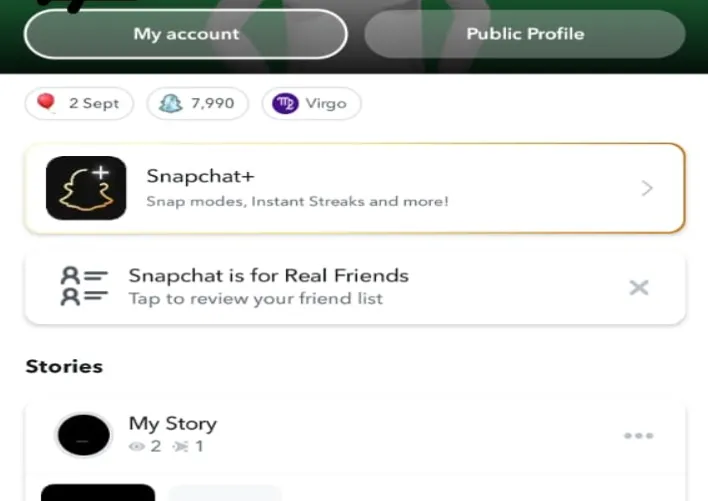
Click Public Profile

3. Now, Tap on the Story That You Want to Check

After being on a profile dashboard, here you have the stories that you have uploaded in the last 24 hours. Tap on the desired story that you want to get informed about.

You can also go to Insights:
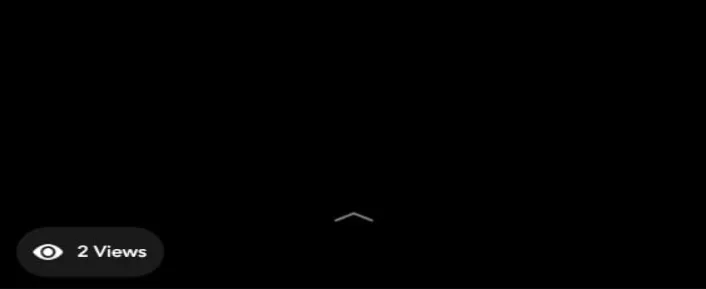
Push Up

4. Tap on the Upside arrow and See Who Viewed the Story and Screenshotted

After clicking the arrow, there is the complete list of the followers who have seen or screenshotted the story. How did you come to know that those who take screenshots are as below:

  • The contact name that has an eye icon with them means they have just seen your story.
  • A contact name that has an arrow with a triangle on it means that they have taken a screenshot of your story and saved it in their gallery.
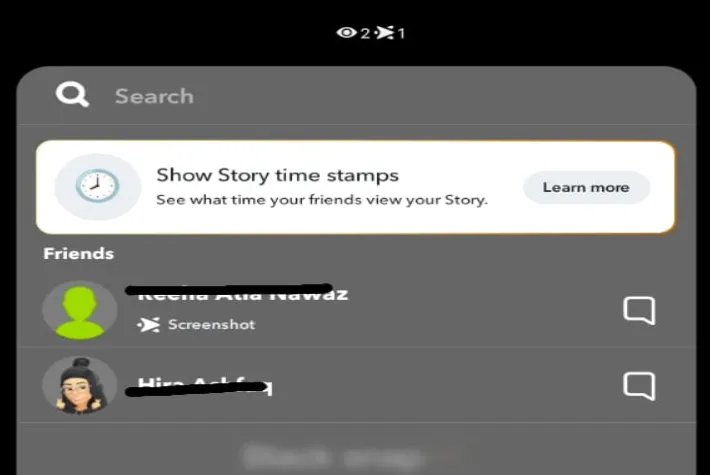
Screenshotted

All in All…

You can stay in touch with your friends and family members by sharing your daily routine streaks with them privately in everyone’s inbox. Another way of getting in touch is to upload a Snapchat story that is sent to all the contacts and is visible only for 24 hours, and automatically disappears after the defined time.

The thing to be discussed here is, do you want to know if someone took a screenshot of your Snapchat story? Interestingly, Snapchat made itself very secure by notifying you if anyone took a screenshot of your story, which can be checked by a simple method to follow.

People Also Ask

Can I control who can screenshot my Snapchat story?

You can just control who can see your Snapchat story by setting the privacy setting to public, friends only, or selected contacts, but you can not prevent people from taking screenshots. Friends who can see your story can also screenshot it.

Is there an option to hide my story from unwanted contacts?

Yes, you can set the privacy setting by going into the settings of your account, and here you can set who can see your story to friends, public, or selected contacts. 

Do I get notified when someone takes a screenshot of my Snapchat streak? 

Yes, in your chatbox with that person, you will get a notification from Snapchat that this contact screenshotted your streak.

Is Snapchat a Secure Platform to Upload Stories on?

Yes, it is very secure, that is built up for users to create fun moments and share with friends with end-to-end encrypted security. 

Share. Facebook Twitter Pinterest LinkedIn Tumblr Email
Fawad Malik
  • Website

Fawad Malik is a tech blogger and digital marketing specialist with 15+ years of experience. As the founder of Techuy.com, he covers technology, gadgets, SEO, social media marketing, and business ideas, sharing insights based on the latest industry trends. His content is regularly updated to provide accurate and valuable information to readers.

Related Posts

How to Delete Temporary Files in Windows 11 (Step-by-Step) 

June 2, 2026

How to Record Screen in Windows 11 for Free? (Easy Methods for Beginners)

May 26, 2026

How to Enable Dark Mode in Windows 11 (Step-by-Step Guide) 

May 22, 2026
Leave A Reply Cancel Reply

About Techuy
Techuy - Technology for Innovators

Techuy is a technology-focused platform that shares clear, practical content on tech news, software, apps, digital trends, and online tools. The goal is simple: help readers stay informed and make better tech decisions through easy-to-read and useful guides.

Facebook Instagram
Latest Additions

Credit Card Fraud and Hacktivism: Modern Cybersecurity Risks

August 17, 2026

Minecraft Confirms Nintendo Switch 2 Release Date of October 27

August 6, 2026

Gears of War: E-Day Beta and More Headline Xbox Game Pass August Wave 1

August 5, 2026

Xbox Disc-to-Digital Feature Coming This Month, Leaked Document Suggests

August 4, 2026

Techuy shares the latest tech news, practical technology guides, detailed app reviews, useful online tools, gaming updates, and smart digital tips to help users stay informed, solve everyday tech problems.

Email Us: [email protected]

Our Picks

Credit Card Fraud and Hacktivism: Modern Cybersecurity Risks

August 17, 2026

Minecraft Confirms Nintendo Switch 2 Release Date of October 27

August 6, 2026

Gears of War: E-Day Beta and More Headline Xbox Game Pass August Wave 1

August 5, 2026

Subscribe to Updates

Get the latest creative news.

© 2021-2026. www.techuy.com All Rights are Reserved.
  • About Us – TechUY.com
  • Contact Us
  • Sitemap
  • Privacy Policy
  • Content Guidelines
  • Terms and Conditions

Type above and press Enter to search. Press Esc to cancel.