
Close Menu
  • Home
  • Tech
  • Gaming
  • How to Guides
  • Social Media
    • YouTube
    • Tiktok
    • Instagram
    • Facebook
    • Snapchat
    • LinkedIn
  • Apps & Software
  • Reviews
  • News
Facebook X (Twitter) Instagram
Trending
  • Credit Card Fraud and Hacktivism: Modern Cybersecurity Risks
  • Minecraft Confirms Nintendo Switch 2 Release Date of October 27
  • Gears of War: E-Day Beta and More Headline Xbox Game Pass August Wave 1
  • Xbox Disc-to-Digital Feature Coming This Month, Leaked Document Suggests
  • Rockstar Hints Point To GTA 6 Gameplay Dropping This Month 
  • Sony Hears the Backlash Over Ending PlayStation Discs, but Presses Ahead Anyway
  • D&D Goes Big at Gen Con 2026: World of Warcraft Crossover, Star Wars Reveal, and Dark Sun’s Mature-Rated Return
  • Fortnite Servers Down for v41.30 Update: Spider-Man Skins, New Sprites, and Everything Coming Today
Facebook X (Twitter) Instagram LinkedIn
Techuy – Tech News, Guides, Apps & Online ToolsTechuy – Tech News, Guides, Apps & Online Tools
  • Home
  • Tech
  • Gaming
  • How to Guides
  • Social Media
    • YouTube
    • Tiktok
    • Instagram
    • Facebook
    • Snapchat
    • LinkedIn
  • Apps & Software
  • Reviews
  • News
Techuy – Tech News, Guides, Apps & Online ToolsTechuy – Tech News, Guides, Apps & Online Tools
Home » Blog » How to See Mutual Friends on Snapchat? (No Hacks Needed!)
How to Guides

How to See Mutual Friends on Snapchat? (No Hacks Needed!)

Saad ShahBy Saad ShahAugust 21, 2025No Comments4 Mins Read
Facebook Twitter Pinterest LinkedIn Tumblr Email
How to See Mutual Friends on Snapchat?
How to See Mutual Friends on Snapchat? (No Hacks Needed!)
Share
Facebook Twitter LinkedIn Pinterest Email
Table of Contents
  • Does Snapchat Allow you to See Mutual Friends?
  • How to Check Mutual Friends on Snapchat
    • Step 1: Open the Snapchat App:
    • Step 2: Go to your Snapchat Profile:
    • Step 3: Find the “Add Friends”  Section Here:
    • Step 4: Look for Mutual Friends:
  • All in All:
  • People Also Ask 

Hello Snapchat users! Stop questioning about seeing mutual friends of yours and someone on Snapchat! This is hidden, but it is possible to find.

As you are curious to watch mutual friends, as I was a time ago, no worries, there are some straightforward steps to see, and no tricks needed. 

So, to have the secret unlocked, I will tell you everything in the following guide. Stay with me and have ultimate fun unlocked!

Does Snapchat Allow you to See Mutual Friends?

Yes, Snapchat allows you to see the number of mutual friends with someone.

Instead of showing the complete list of friends, Snapchat gives users the option via the “Quick Add” or “Add Friends” section. In this section, some accounts will be available with written mutual friends with you at the bottom in blue writing. 

Snapchat tells you that this contact has a few Snapchat friends in common with you. However, there will not be the exact list of mutual friends available, but just the numbers.

Though it does not show the exact naming list, it is still a great way to find people you might know in real life, as coworkers, previous classmates, etc. 

How to Check Mutual Friends on Snapchat

Step 1: Open the Snapchat App:

First of all, open the Snapchat app and go to your account.

Step 2: Go to your Snapchat Profile:

Now, you are required to go to your Snapchat profile. Tap on your Bitmoji icon available at the top left corner of the main Snapchat screen, and this will lead you straight to your Snapchat profile. 
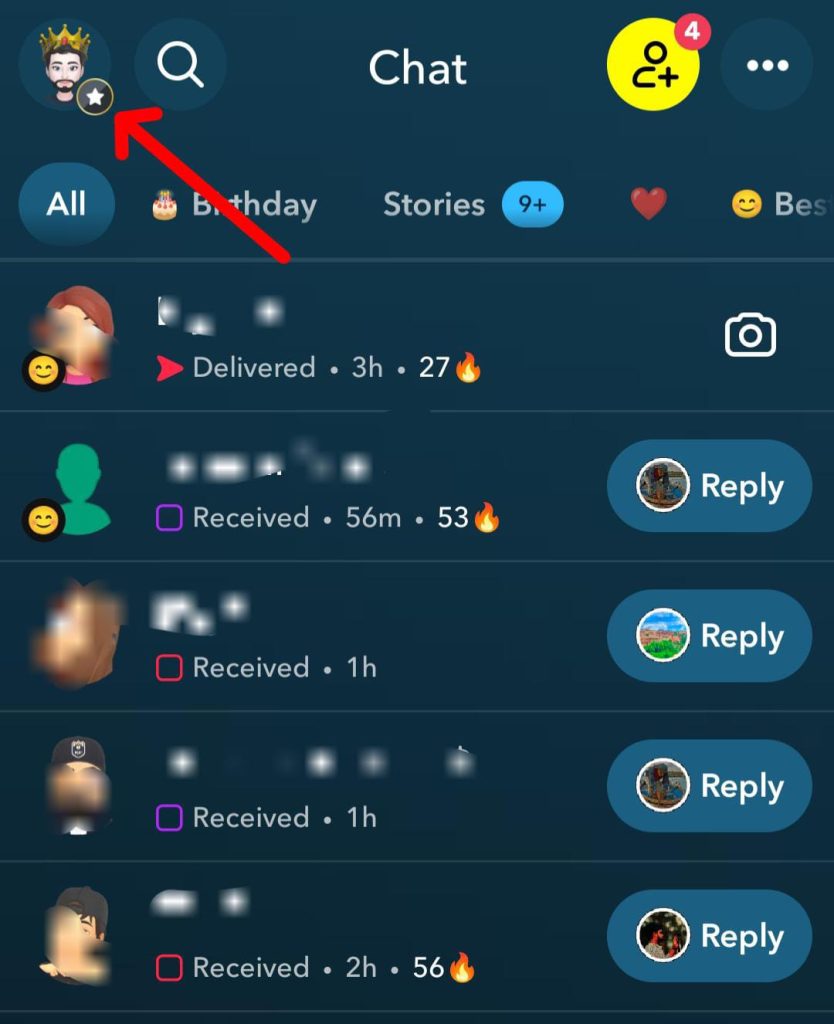
Go to your Snapchat Profile

Pro Tip 🔮

If you’re a Snapchat Plus subscriber, you might get access to additional friend insights, but the mutual friends feature works the same way for all users.

Step 3: Find the “Add Friends”  Section Here:

After reaching the profile screen, you are to scroll down a little, and there will be the “Add Friends” section available. This is the spot where Snapchat shows your mutual friends with other people.

Find the  “Add Friends”  Section Here

Step 4: Look for Mutual Friends:

Under each person’s name in the quick ad list, you will see a line that tells about the mutual friends written as “3 mutual friends” or “2 mutual friends“, etc.

This means you and that person have this number of friends in common in your friend lists. You can send a friend request on Snapchat from here if you know them, or ignore if you don’t want to connect.

Look for Mutual Friends

An Extra Tip: 🔮

The more people you add on Snapchat, the better the “Quick Add” section will suggest mutual friends to you. Oh, if you do not see mutual friends in your Quick Add section, add some people that you know, and then return to Quick Add.

All in All:

It is very easy to see mutual friends of you and someone on Snapchat, as no tricks or hacks are required for this to do, but just by following the built-in Snapchat features.

By the way, if you’re using Snapchat Web, you should know that the mobile app is where most features like mutual friends or Quick Add are actively supported-Snapchat Web is limited mainly to chatting and calling.

You just have to keep exploring, and in no time, you will get the information in front of you on the screen. As Snapchat keeps things private, you are now one step ahead of it in seeing the things you need.

People Also Ask 

What can I do after finding mutual friends with someone? 

After finding the mutual friends’ information, you can add or ignore the person based on your relationship or interaction.

Is there any process in Snapchat that notifies the person when I add mutual friends? 

No, there is nothing like that. When you add someone, Snapchat will not notify any of your friends, and this is private. 

Can I hide myself from appearing in the Quick Add section of others? 

Yes, you can do this by toggling the “See me” option off under the Quick Add section. 

Can I see the complete Snapchat friend list of someone?

No, you can not see the complete Snapchat friend list of someone as the App privately secures it.

app navigation friend connections napchat tips social media features
Share. Facebook Twitter Pinterest LinkedIn Tumblr Email
Saad Shah
  • Website
  • LinkedIn

Saad Shah is an experienced Content Writer and Editor at WebTech Solutions. He works tirelessly to write unique and high-quality pieces that speak directly to the reader with a richly informative story. His interests include writing about health fitness, and Techbiz, and also giving ideas on socio-political problems articles.

Related Posts

How to Delete Temporary Files in Windows 11 (Step-by-Step) 

June 2, 2026

How to Record Screen in Windows 11 for Free? (Easy Methods for Beginners)

May 26, 2026

How to Enable Dark Mode in Windows 11 (Step-by-Step Guide) 

May 22, 2026
Leave A Reply Cancel Reply

About Techuy
Techuy - Technology for Innovators

Techuy is a technology-focused platform that shares clear, practical content on tech news, software, apps, digital trends, and online tools. The goal is simple: help readers stay informed and make better tech decisions through easy-to-read and useful guides.

Facebook Instagram
Latest Additions

Credit Card Fraud and Hacktivism: Modern Cybersecurity Risks

August 17, 2026

Minecraft Confirms Nintendo Switch 2 Release Date of October 27

August 6, 2026

Gears of War: E-Day Beta and More Headline Xbox Game Pass August Wave 1

August 5, 2026

Xbox Disc-to-Digital Feature Coming This Month, Leaked Document Suggests

August 4, 2026

Techuy shares the latest tech news, practical technology guides, detailed app reviews, useful online tools, gaming updates, and smart digital tips to help users stay informed, solve everyday tech problems.

Email Us: [email protected]

Our Picks

Credit Card Fraud and Hacktivism: Modern Cybersecurity Risks

August 17, 2026

Minecraft Confirms Nintendo Switch 2 Release Date of October 27

August 6, 2026

Gears of War: E-Day Beta and More Headline Xbox Game Pass August Wave 1

August 5, 2026

Subscribe to Updates

Get the latest creative news.

© 2021-2026. www.techuy.com All Rights are Reserved.
  • About Us – TechUY.com
  • Contact Us
  • Sitemap
  • Privacy Policy
  • Content Guidelines
  • Terms and Conditions

Type above and press Enter to search. Press Esc to cancel.