


- Why Are Empty Rows Such a Problem?
- How to Remove Empty Rows in Excel Sheets using Sort & Delete?
- How to Remove Empty Rows in Excel Sheets using “Go To Special”?
- How to Remove Empty Rows in Excel Sheets using Filter Method?
- How to Remove Empty Rows in Excel Sheets using Power Query?
- How to Remove Empty Rows in Excel Sheets using Quick Formula Trick?
- Quick Tips to Avoid Messy Sheets in the First Place
- Make Your Excel Sheets Cleaner and More Efficient
Working with large Excel spreadsheets can be messy, especially when empty rows are scattered throughout your data. These blank rows can make your sheets harder to read, slow down calculations, and even cause errors in analysis.
Learning how to quickly remove empty rows not only cleans up your spreadsheet but also makes your work more efficient and organized.
In this guide, we’ll show simple and effective methods to get rid of empty rows in Excel, whether you’re working with a small table or a large dataset.
Why Are Empty Rows Such a Problem?
Blank rows might seem harmless, but they cause real headaches:
- Sorting and filtering stop working correctly.
- Charts and pivot tables include unwanted gaps.
- Formulas such as VLOOKUP, XLOOKUP, or array formulas can return errors.
- Your data looks unprofessional and feels harder to read.
- Printing and exporting become messy.
Removing these empty rows is one of the most common cleanup tasks, and once you master it, you’ll save hours of time.
How to Remove Empty Rows in Excel Sheets using Sort & Delete?
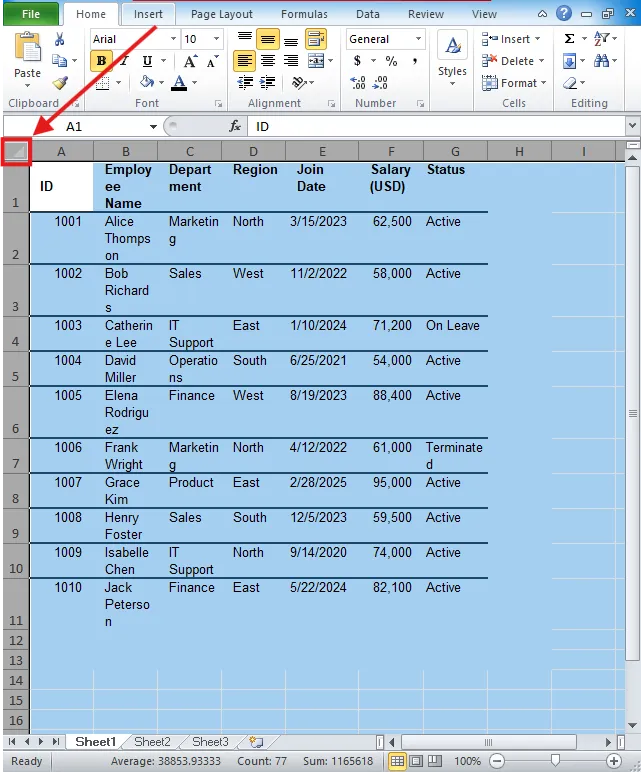
- Select the entire dataset by clicking the top-left corner or pressing Ctrl+A / Cmd+A according to the OS you are using.
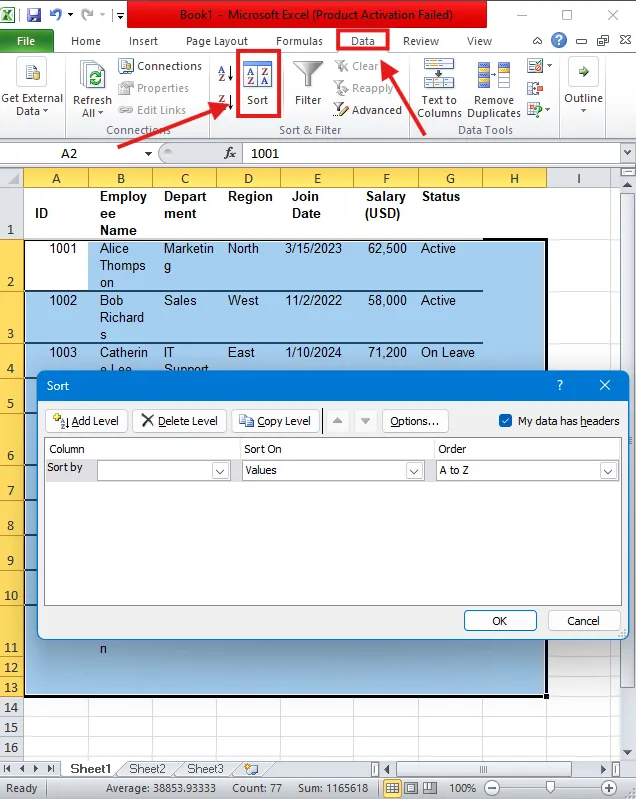
- Go to the Data tab and click Sort.
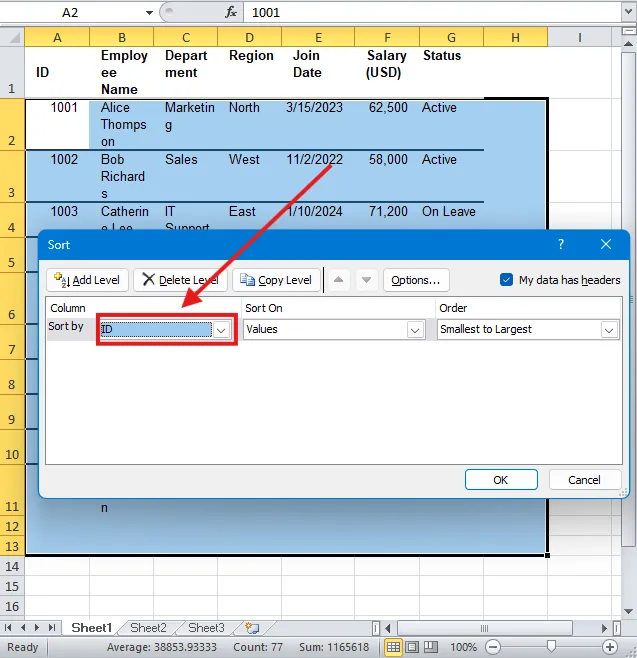
- In the Sort dialog, choose any column that should always have data, such as “Name” or “ID”.
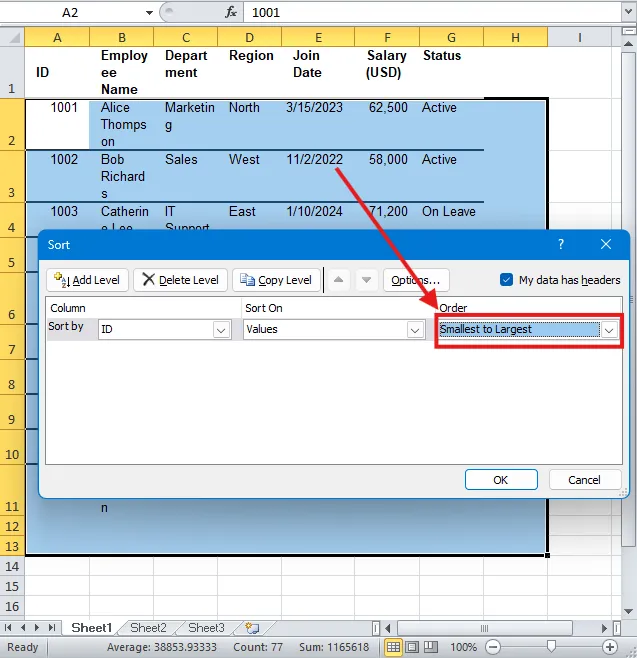
- Sort A to Z or smallest to largest.
- All blank rows will group together at the bottom because blanks sort last.
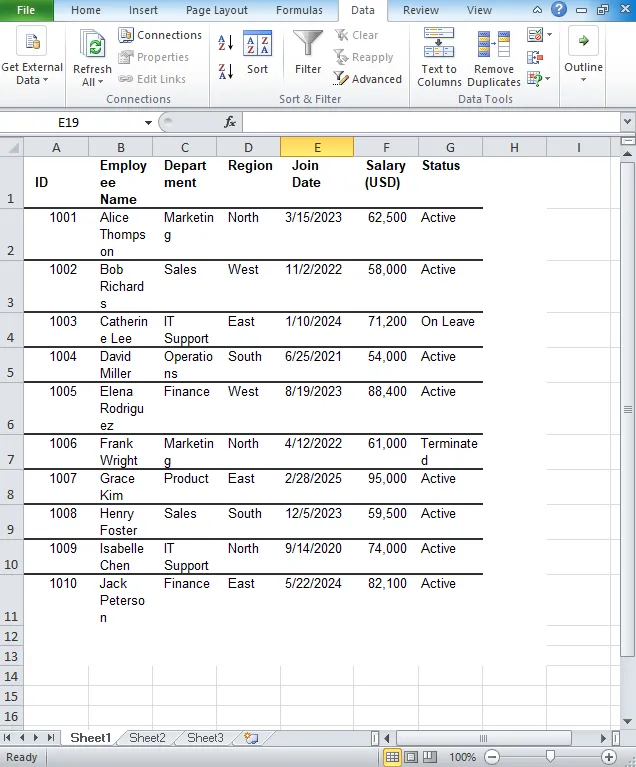
- Select the blank rows by clicking the first row number, holding Shift, and clicking the last row number.
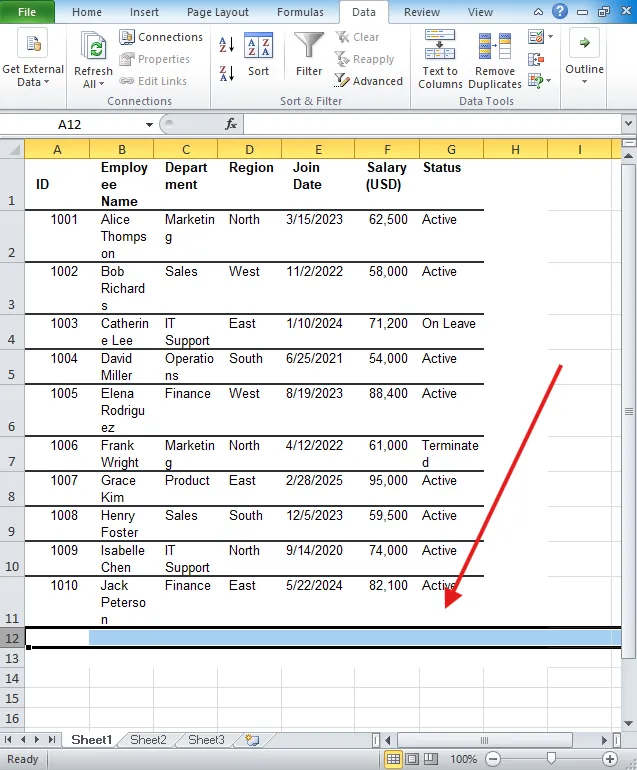
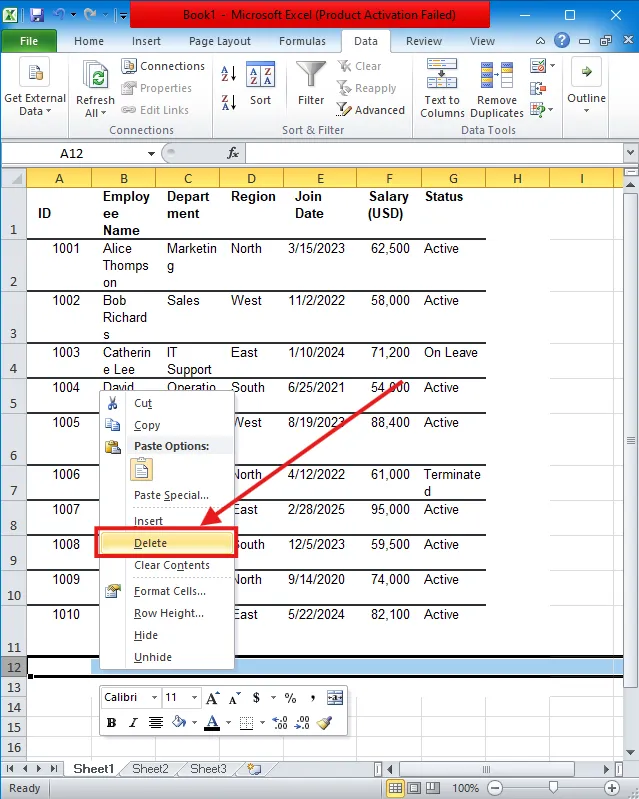
- After that, right-click, then Delete, and then Entire Row.
You May Also Like: How to Repair and Restore PST Data with Stellar Repair for Outlook?
How to Remove Empty Rows in Excel Sheets using “Go To Special”?
- Select your data range or press Ctrl+A / Cmd+A to select everything.
- Press F5 or Ctrl+G / Cmd+G and then click Special.
- Choose Blanks and then OK.
- Excel highlights all blank cells in the selection.
- Right-click any highlighted cell and then click on Delete and Entire Row.
- Confirm and watch hundreds of blank rows disappear instantly.
How to Remove Empty Rows in Excel Sheets using Filter Method?
- Select your data, including headers.
- Go to the Data tab, then Filter, or press Ctrl+Shift+L / Cmd+Shift+L.
- Click the dropdown arrow in any column header.
- Uncheck (Select All), then check (Blanks).
- You’ll now see only the rows with blanks in that column.
- Select all visible rows, click the first row number, Shift+click the last.
- After that, right-click and Delete Row.
- Turn off the filter Data, then filter again.
How to Remove Empty Rows in Excel Sheets using Power Query?
Power Query is built into Excel (2016+) and is perfect for cleaning data regularly.
- Select your data, then the Data tab, and then From Table/Range. This creates a query.
- In Power Query Editor: Home, then Remove Rows, and then Remove Blank Rows.
- Click Close & Load to send the clean data back to a new sheet.
How to Remove Empty Rows in Excel Sheets using Quick Formula Trick?
- Add a helper column, such as column Z.
- In Z2, enter: =COUNTA(A2:X2). This will adjust the range to your data columns.
- Drag the formula down.
- Filter column Z for 0 (rows with no data).
- Hide or copy-paste visible rows to a new sheet.
Quick Tips to Avoid Messy Sheets in the First Place
- Import data using Power Query instead of copy-paste
- Use Table format (Ctrl+T / Cmd+T) as it handles blanks better
- Clean source files before importing
- Set up Data Validation to prevent blank entries.
- Use Flash Fill or Text to Columns to standardize data.
Make Your Excel Sheets Cleaner and More Efficient
Removal of empty rows in Excel transforms your readability and keeps your data looking professional. You can quickly clean up your Excel sheets from these extra rows by using techniques such as Sort & Delete, Go To Special, filtering, Power Query, and formula tricks.
As someone who works with data, you’ll appreciate how these methods streamline sorting, filtering, and analysis while preventing formula errors. Apply these quick tips and watch your workflow become smoother and more organized.
