

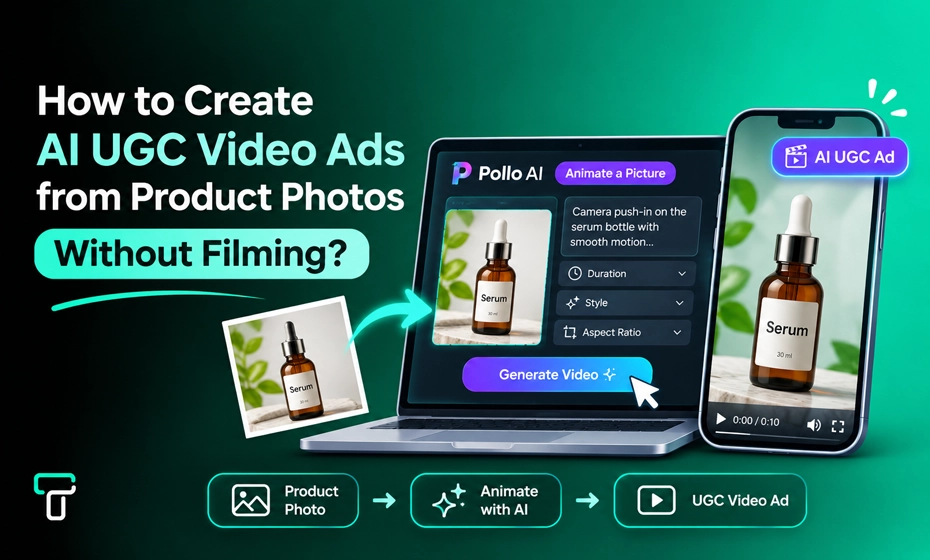
Hiring creators and arranging product shoots can be expensive, especially for small businesses that need fresh ad content regularly.
AI offers another option: businesses can animate photos they already have and use the resulting clips as footage in UGC-style ads.
This guide explains how to use Pollo AI Animate a Picture to create moving product visuals and turn them into short advertising clips.
What Is Pollo AI Animate a Picture?
Pollo AI Animate a Picture is an AI image animation tool that transforms static photos into short video clips using text prompts.
Users upload an image and describe the movement they want, such as a camera push-in, pan, orbit, or subject action.
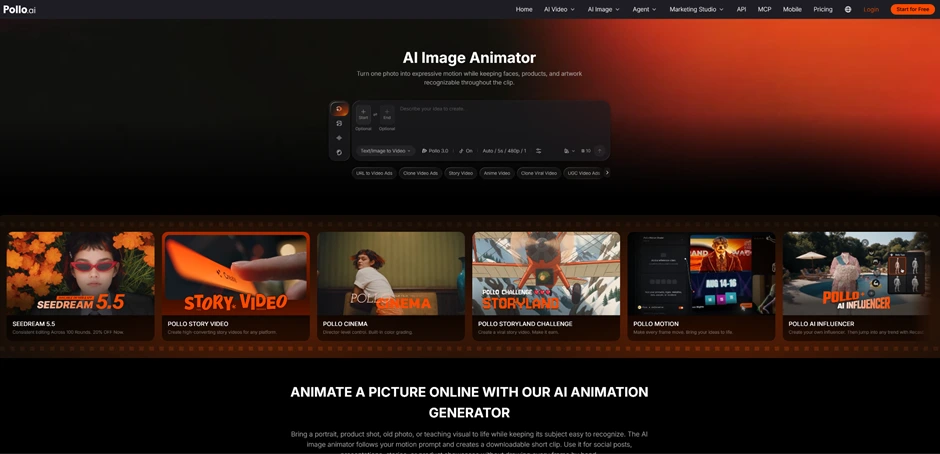
The AI then generates a moving version of the original visual without requiring manual frame-by-frame animation.
Similar to other AI tools for tech professionals and students, image animation technology helps simplify creative tasks that traditionally require specialized software and technical skills.
For e-commerce sellers, this is a practical way to get more use out of existing product photography. A skincare brand can turn a serum bottle photo into a moving product showcase, while a jewelry store can animate a necklace image to give viewers a closer look at its design.
Users can also choose from the available video durations, styles, and aspect ratios to prepare clips for different social media placements.
For sellers creating UGC video ads, the tool offers a way to add more visual variety without filming new product footage. Instead of showing static product images throughout an ad, they can use animated close-ups between narration, captions, and other content.
Animate a Picture handles the image animation itself rather than complete ad production, so voiceovers, music, and other advertising elements can be added during video editing.
How to Create AI UGC Video Ads from Product Photos with Pollo AI
Step 1: Choose a Product Photo for the Ad
Start by selecting a product photo from the brand’s existing image library. Think about which part of the advertisement needs visual support and choose an image that fits that purpose.
For example, a skincare brand might use a serum bottle photo for a product introduction, while a close-up of its packaging could work better when the narration discusses design details. A jewelry seller could choose a necklace image to create a dedicated product showcase.
If the ad needs several different shots, prepare a small collection of product photos rather than trying to make one image cover the entire video. Each image can be animated separately and used for a different part of the final advertisement.
Step 2: Upload the Product Photo to Pollo AI
Go to https://pollo.ai//animate-a-picture and upload the selected product photo.
Once the image has loaded, check that the correct product is displayed before moving on. The uploaded photo will serve as the visual reference for the generated clip, so this is also the point to confirm that the selected image matches the intended ad concept.
After the upload is complete, move to the prompt field to describe how the still image should move.
Step 3: Describe the Desired Movement
Enter a text prompt explaining how the product or camera should move throughout the clip. Pollo AI Animate a Picture supports motion directions such as push-ins, pans, orbits, and subject actions, giving users different ways to animate the same source image.
For an e-commerce ad, the movement should relate to what the product needs to communicate. A camera push-in can create a closer view of the packaging, while an orbit can provide a different perspective of an item. The prompt can also describe the intended visual effect to guide the animation.
Once the prompt is ready, submit it to generate the clip. If the campaign requires multiple product shots, repeat the process with other images and different motion instructions to build a collection of footage for the ad.
Step 4: Adjust the Video Settings and Generate the Animation
Before generating the final clip, review the available settings and select a suitable duration, visual style, and aspect ratio. These choices should reflect where the footage will be used.
For instance, a vertical format is generally more suitable for TikTok and Instagram Reels, while a product listing may require a different frame layout. The duration should also fit the role of the shot: a short product reveal doesn’t need to occupy the same amount of screen time as a longer showcase.
After selecting the settings, generate the animation and wait for the result. Preview the clip to see how the product moves and whether the generated footage works for the planned advertisement. If the result doesn’t match the original idea, return to the prompt, adjust the motion description, and generate another version.
Step 5: Download the Clip and Build the UGC Ad
Once the animation is ready, preview and download the clip for use in the final advertisement. Repeat the process for other product photos if additional footage is needed.
The animated clips can then be imported into a video editor and arranged alongside the rest of the ad content. For example, a skincare seller could open with a short voiceover introducing a common skincare concern, show an animated serum bottle while explaining the product, and finish with a call to action directing viewers to the store.
Captions, background music, and narration can help connect the different shots. The final sequence should have a clear beginning, product introduction, and closing message rather than simply presenting several unrelated animations. This turns the clips generated with Animate a Picture into usable product footage for a UGC-style advertising campaign.
Tips for Creating Better Animated Product Ads
Start with a clear source image. Choose photos with good lighting, a visible product, and enough detail to identify its packaging and shape. Blurry images or heavily obstructed subjects may produce less consistent results.
Keep motion prompts focused. One clear camera movement is often easier to guide than several unrelated actions. For example, a perfume seller could try:
A slow camera push-in toward the perfume bottle, with soft studio lighting and subtle reflections across the glass. Keep the original bottle shape, label, packaging, and colors recognizable.
Match the movement to the product. A gentle orbit can highlight jewelry, while a slow push-in may work better for cosmetics packaging. Avoid excessive motion that takes attention away from the item.
Check product details before publishing. AI-generated footage may occasionally change labels, logos, packaging, or colors. Compare the result with the original photo and avoid using clips that misrepresent the actual product.
Keep the UGC narration natural. Use straightforward language rather than overly polished sales copy. Studying how popular YouTube influencers communicate with their audiences can also provide inspiration for creating more natural and engaging product presentations.
Focus on genuine product benefits and avoid inventing customer experiences or testimonials.
Conclusion
Creating UGC-style video ads doesn’t always require a camera or a new product shoot. Sellers can animate existing product photos to produce moving visuals for product showcases, voiceovers, and social media advertisements.
Pollo AI Animate a Picture provides a straightforward way to turn static images into short clips through text-based motion prompts.
For businesses that already have product photography but need more video footage, it offers a practical starting point for creating additional advertising visuals without arranging another production shoot.
